
Manage Installed Apps
Launch your installed Kro app with one click directly from the macOS Launchpad or Windows Start Menu.
You can also view your apps in KroWork through the following two ways:
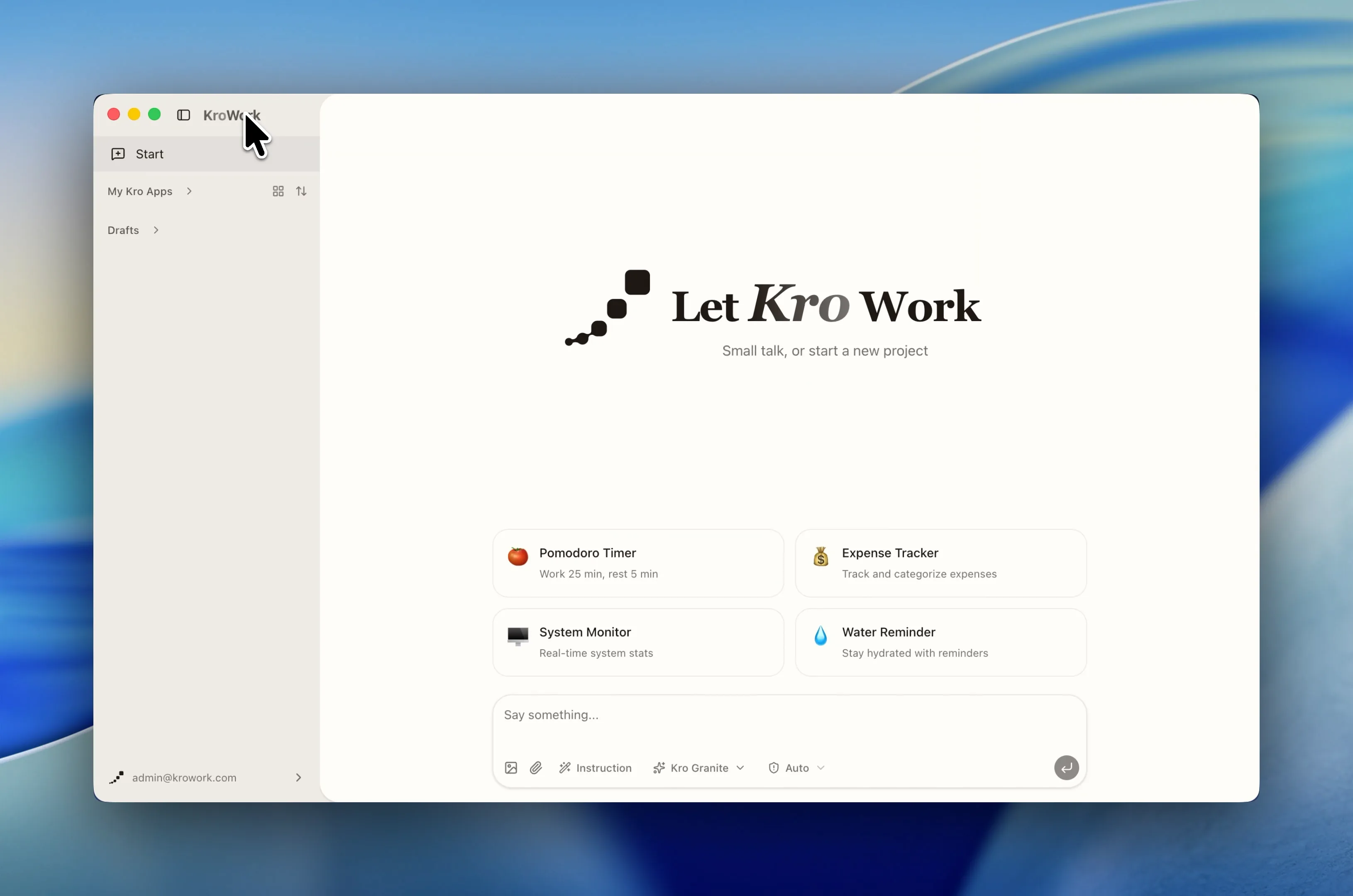
- Click the KroWork title in the top-left corner to see the list of apps.
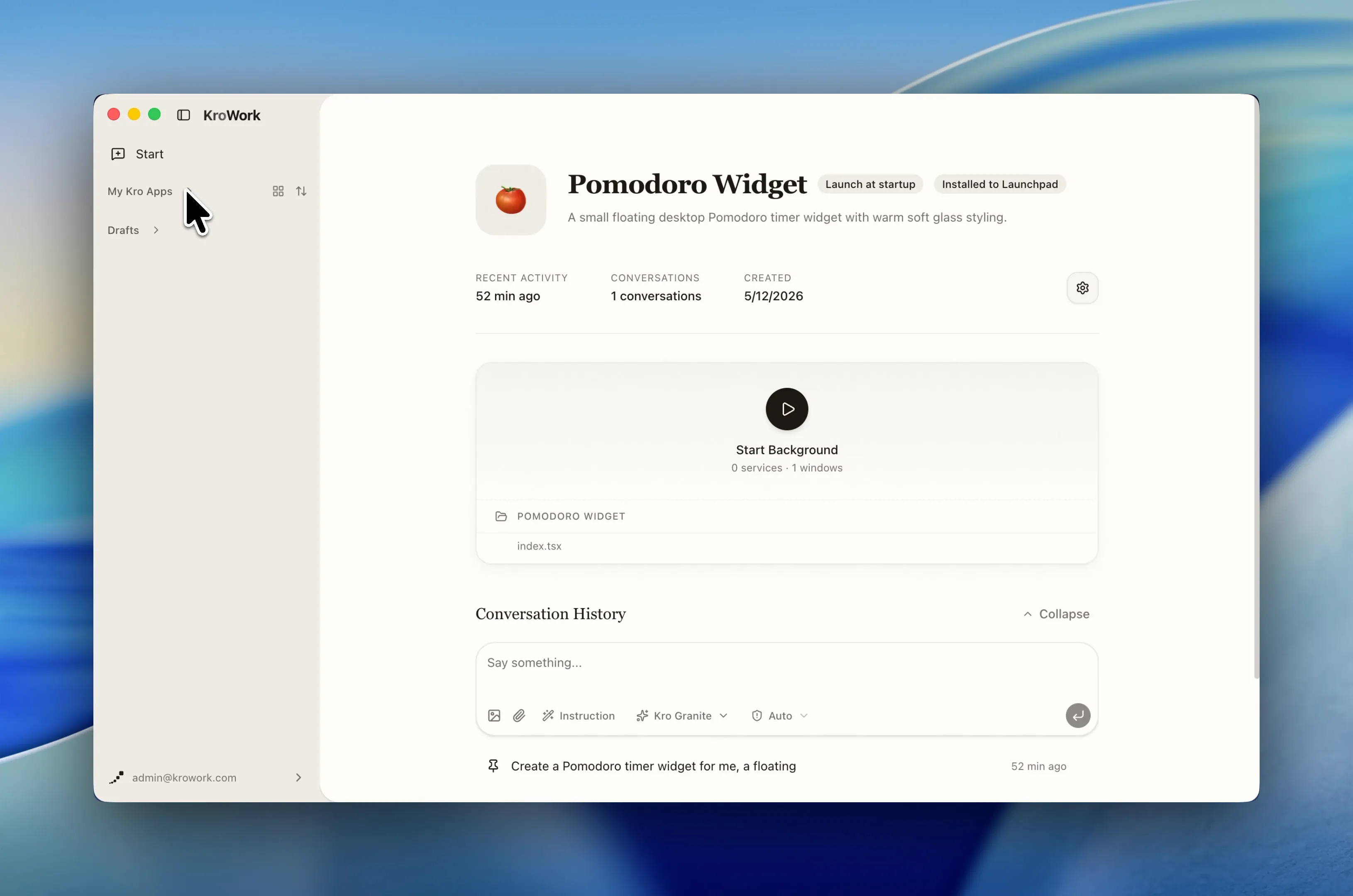
- Access directly via "My Kro Apps" in the left sidebar, or click the square icon on its right.
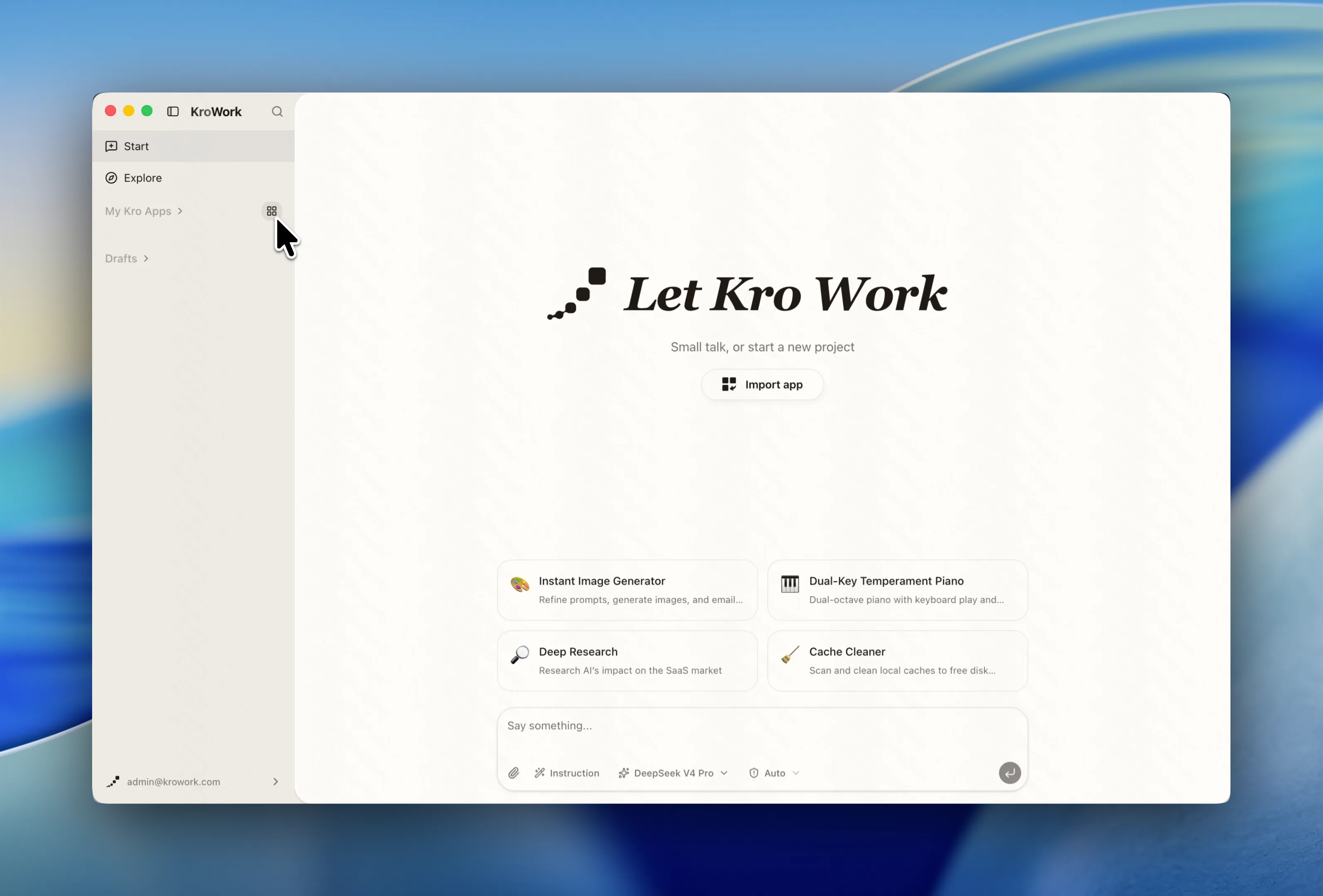
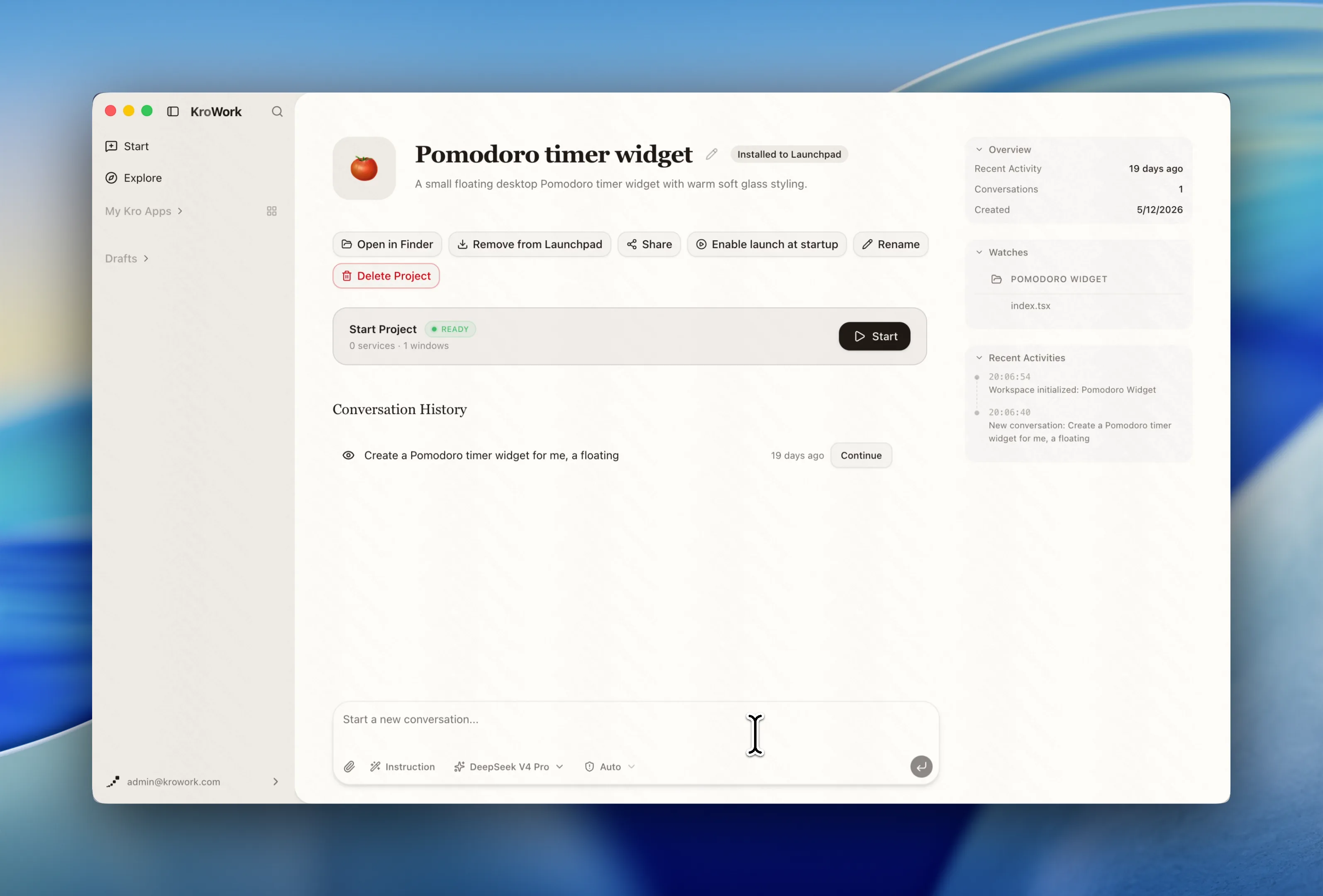
On the app details page, you can manage your Kro app with the following actions:
Open in Finder
Click to quickly locate the local installation folder of your Kro App for file access and management.
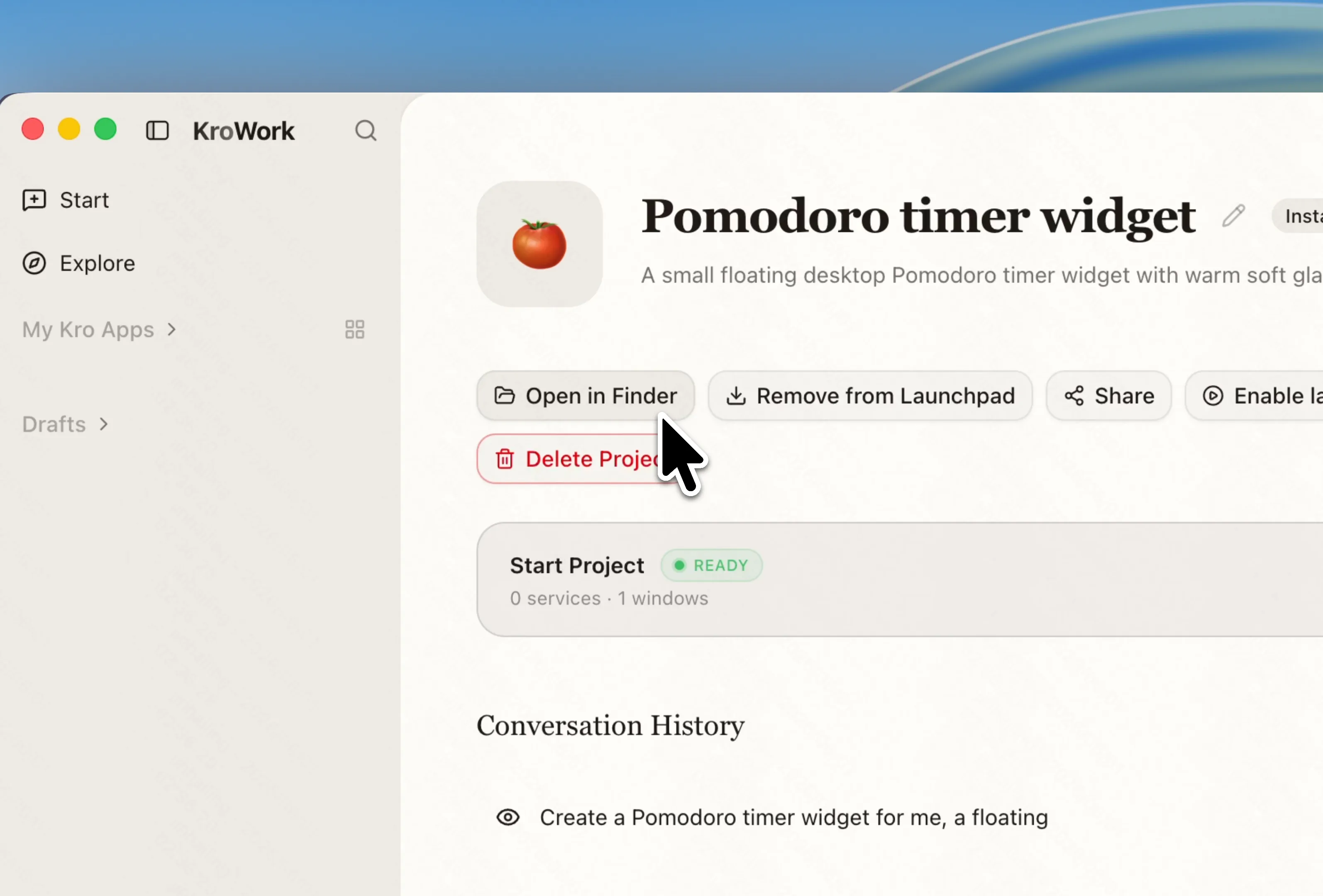
Launchpad Management
Add the app to Launchpad for quick daily access, or remove it from Launchpad and access the app directly from KroWork instead.
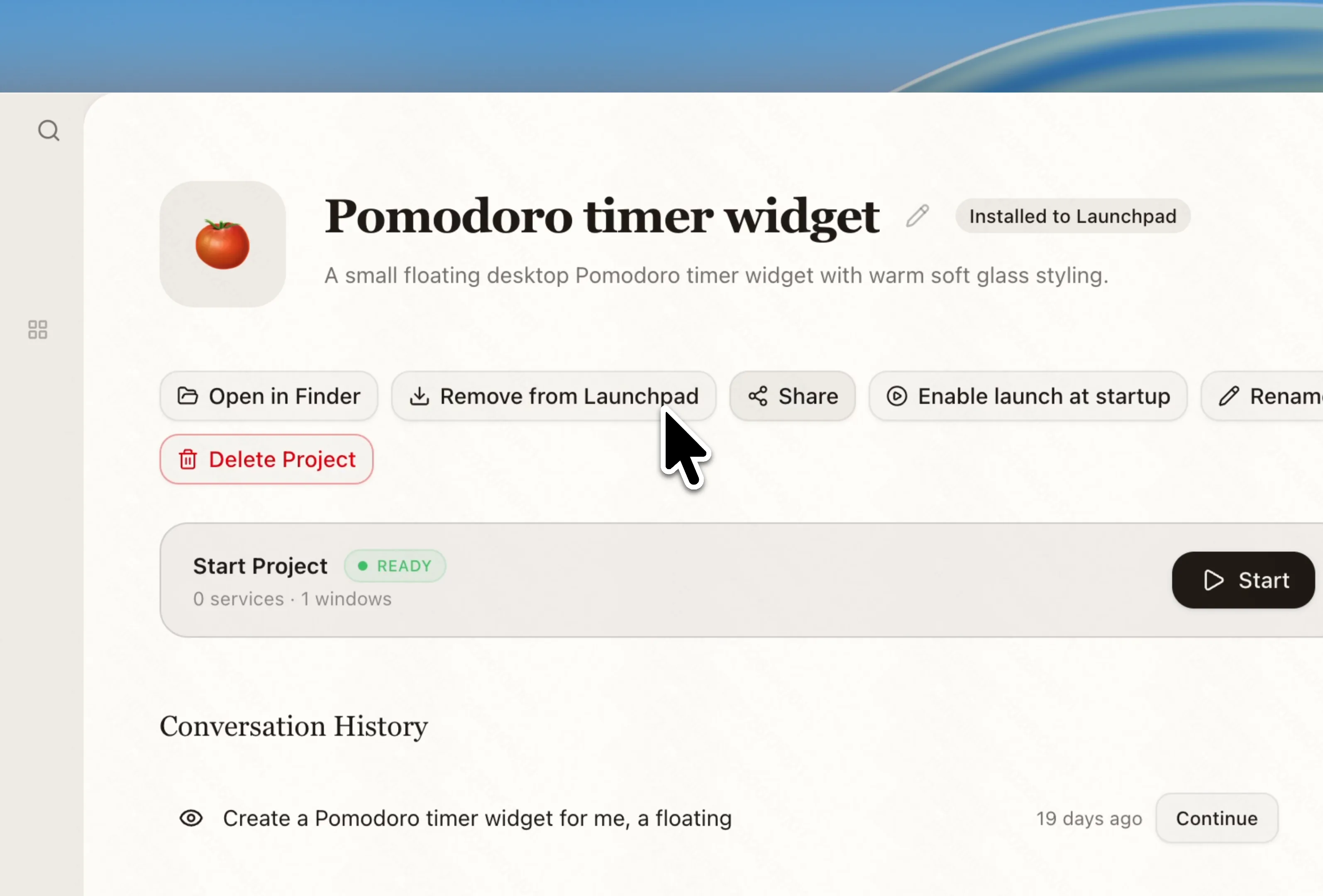
Share
Share your app with others via a link or by exporting a bundle.
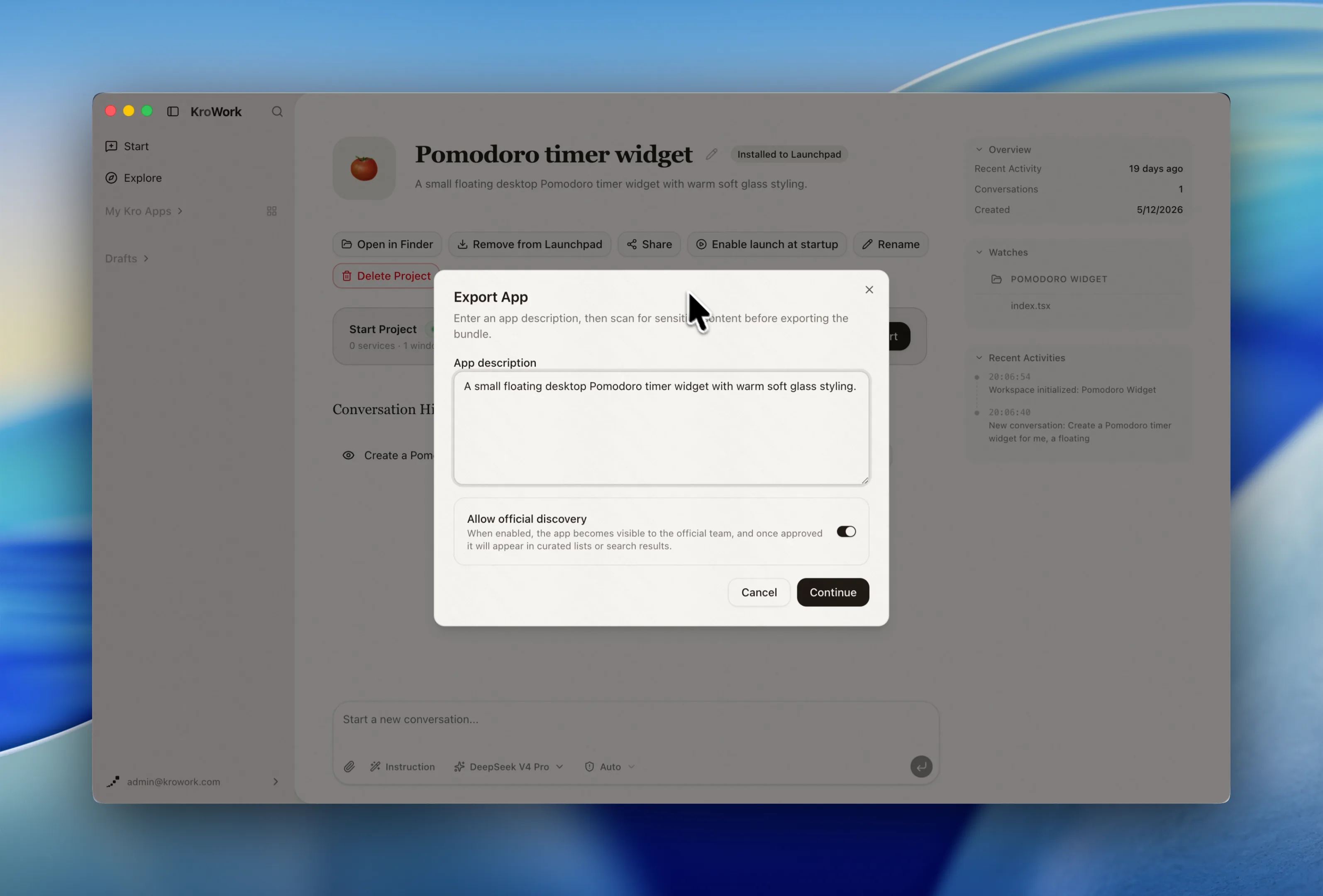
Auto-Launch
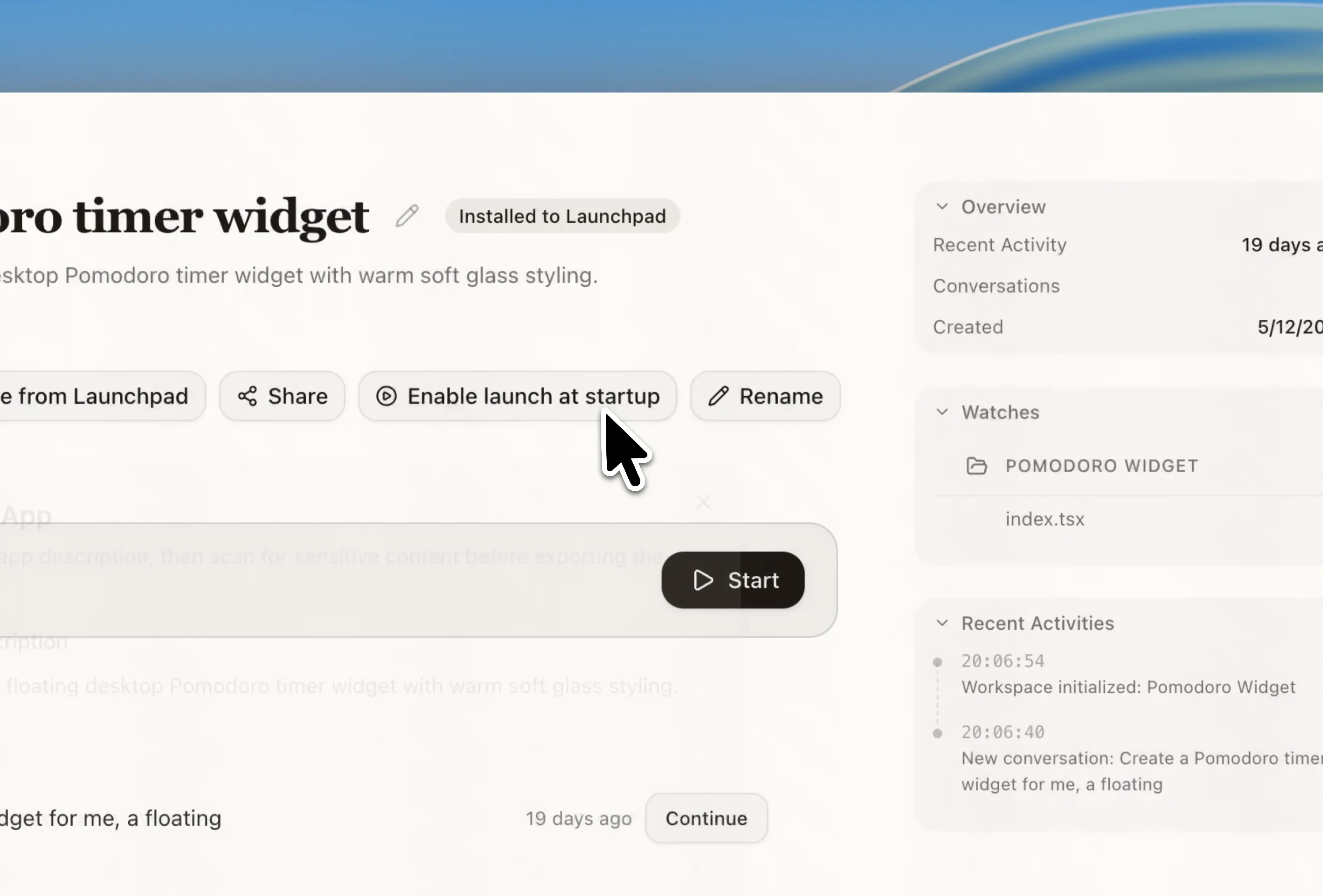
Check Enable launch at startup to let the app run automatically when the system boots.
Rename
Rename your Kro App here for easier identification and management. 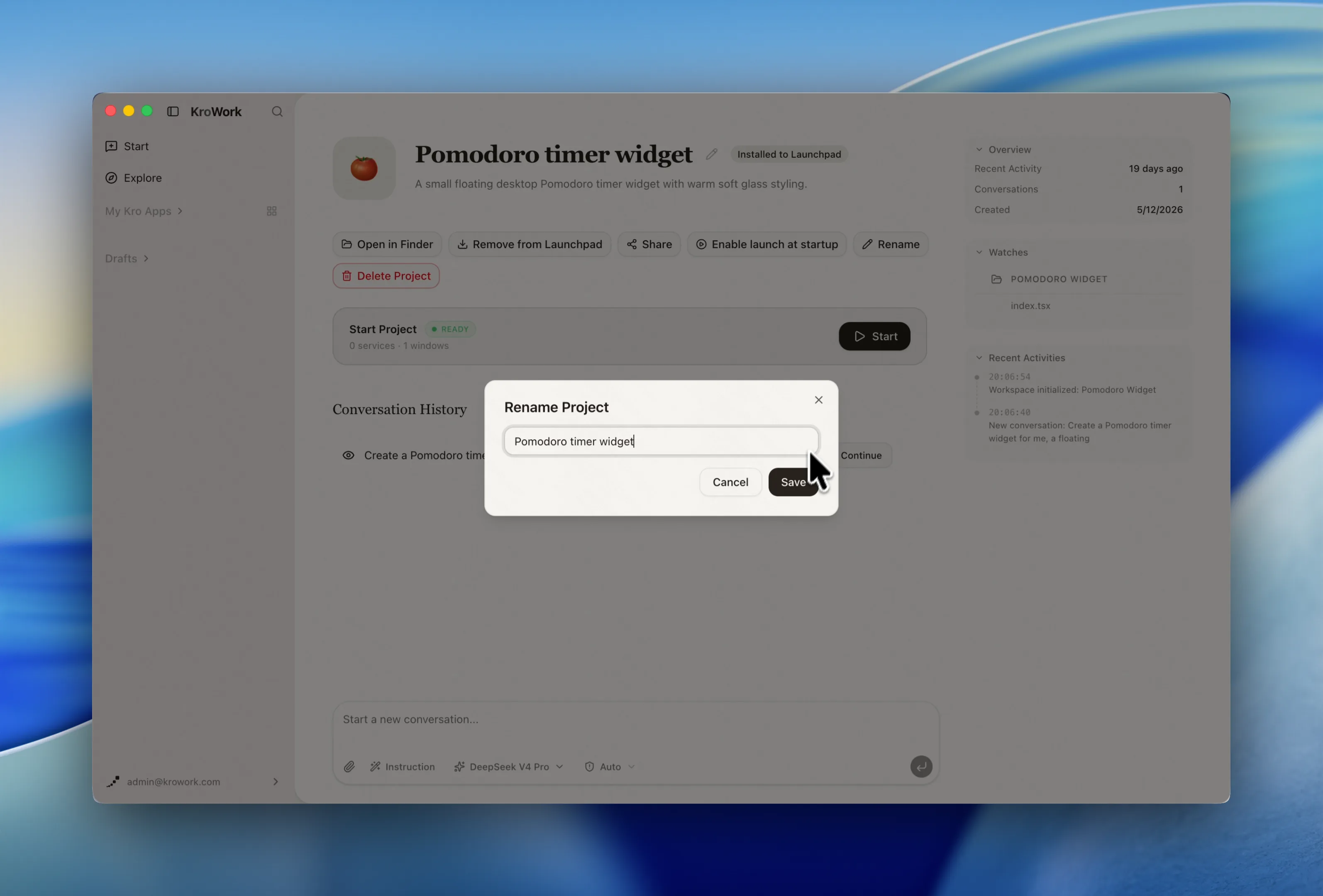
Delete Project
Delete the current project here to remove all related configurations and files. 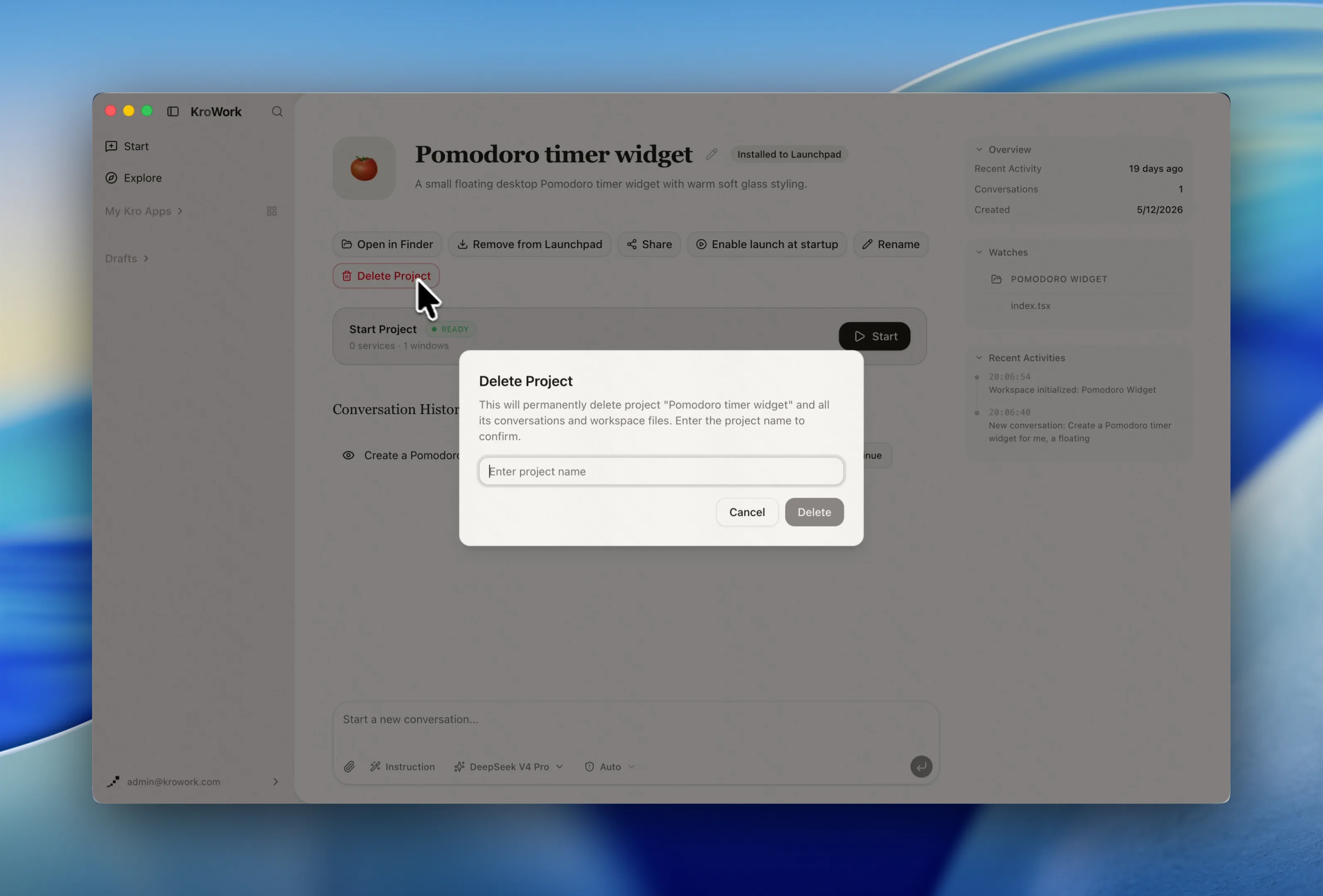
Modification & Iteration
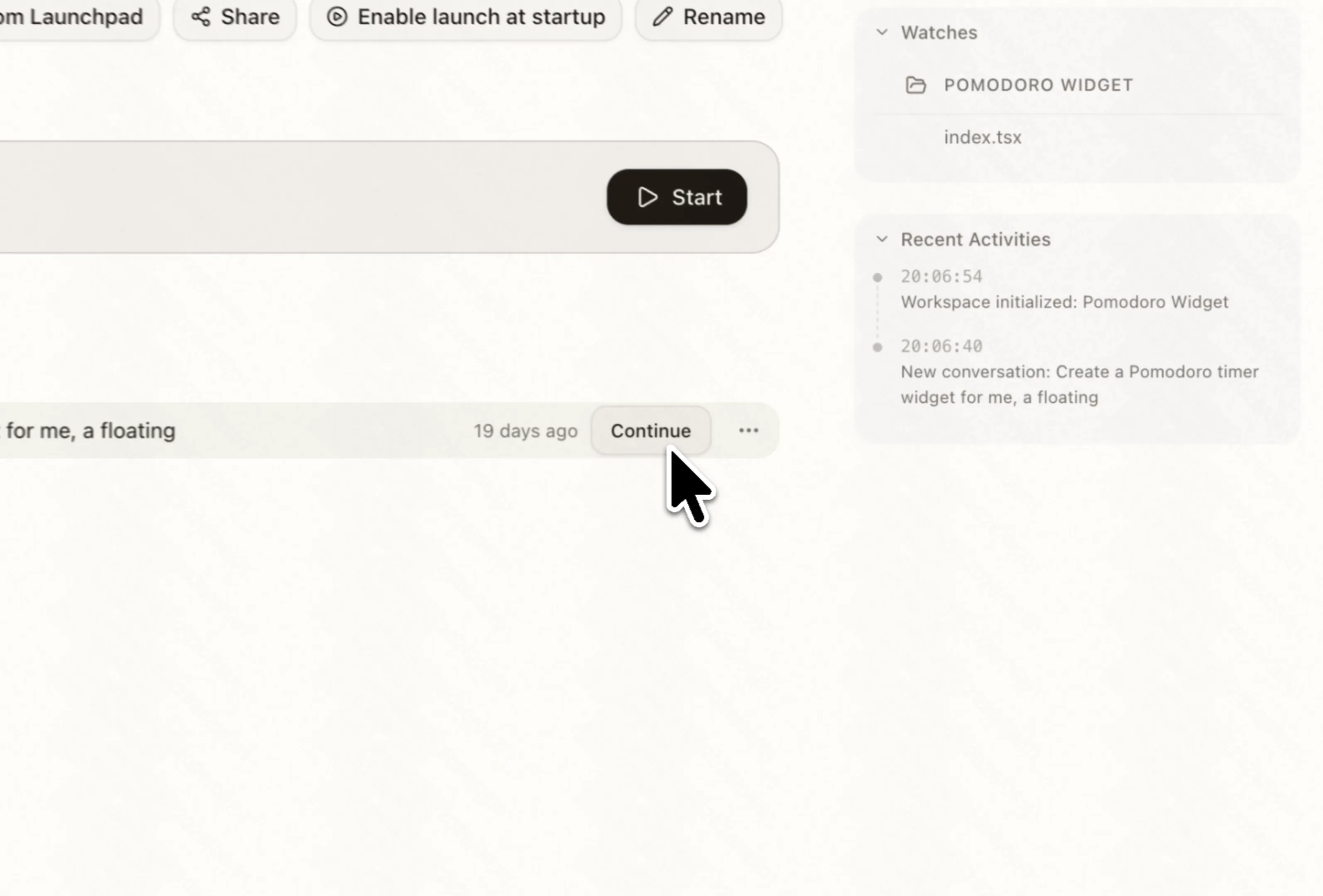
Click "Continue" or start a new conversation to continuously iterate and optimize your Kro Apps. The dashboard will automatically record your improvement history and related calendar for easy review and further development.